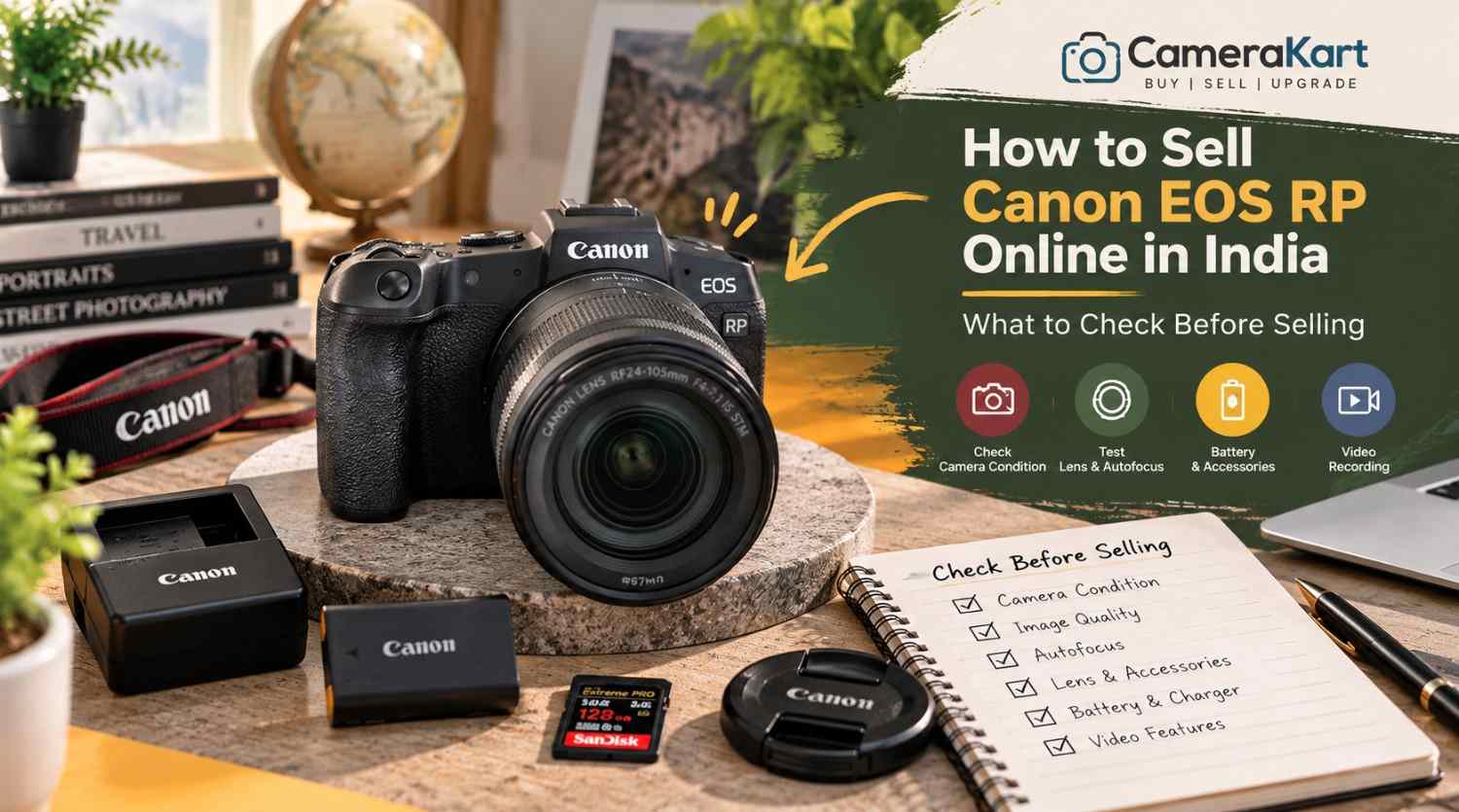
If you own a Canon EOS RP and are planning to upgrade your camera or switch to another system, selling your existing equipment can be a practical next step. Before you sell Canon EOS RP online, check the camera’s sensor performance, autofocus, display, recording functions, lens mount and included accessories.
The Canon EOS RP is a compact full-frame mirrorless camera featuring a 26.2MP CMOS sensor, DIGIC 8 image processor, Dual Pixel CMOS AF and Canon RF lens compatibility. It can also use compatible EF and EF-S lenses with the appropriate mount adapter, making it relevant to photographers transitioning from a Canon DSLR.
Because many EOS RP owners use their cameras for portraits, travel, family photography and everyday content creation, the inspection should cover both photography and video functions.
This guide explains how to prepare your camera, identify its included equipment and start the selling process through CameraKart.
1. Identify the Exact Camera Package
Before requesting an offer, confirm whether you are selling the EOS RP body alone or including a lens.
The camera uses Canon’s RF mount. If you previously used Canon DSLR lenses, you may also have an EF-EOS R mount adapter. Include it only if you intend to sell it with the camera.
Make a list of the equipment you have:
- Canon EOS RP camera body
- RF or RF-S-compatible equipment where applicable; identify the exact lens model
- Compatible EF lens and mount adapter, if included
- Battery and charger
- Body cap and lens caps
- Camera strap
- Original box and purchase invoice, if available
- Additional batteries or other accessories
If you are selling a body-only package, state that clearly. If you have an RF lens or DSLR lens with an adapter, record each model separately.
A complete and accurate equipment list helps avoid confusion during inspection when you sell a used Canon EOS RP.
2. Check the Full-Frame Sensor and Image Quality
The EOS RP features a 26.2MP full-frame CMOS sensor. Before selling, take several photographs in different lighting conditions and inspect the saved images.
Start with a well-lit subject, then photograph a darker scene. Review the results on the camera and, if possible, on a computer screen.
Look for:
- Persistent marks or spots in the same image area
- Unusual lines or recurring colour defects
- Unexpected image corruption
- Problems saving photographs
- Exposure behaviour that appears inconsistent
A mark in a photograph does not necessarily mean the sensor is damaged. Dust on the lens, lighting conditions and shooting settings can affect image quality too.
If a defect appears repeatedly, investigate carefully and disclose any unresolved issue. Avoid touching the sensor surface or attempting unfamiliar cleaning procedures just before selling.
3. Test Autofocus and Subject Detection
Autofocus is an important part of the EOS RP’s everyday photography performance. The camera uses Dual Pixel CMOS AF for supported still-image and video workflows.
Take photographs of a stationary subject and a person moving around the frame. Test autofocus in suitable lighting and try different focus areas.
Check whether:
- The camera acquires focus consistently.
- Focus points respond to your selections.
- Face detection works as expected.
- Touchscreen focus responds normally.
- Autofocus operates with the included lens.
- Any unusual warning appears.
If focus seems inconsistent, repeat the test with suitable settings and a lens you know is functioning properly. A problem may originate from the lens or shooting conditions rather than the camera body.
When you request an offer, mention any autofocus issue you have been unable to resolve.
4. Inspect the LCD Screen, Viewfinder and Controls
The EOS RP has a vari-angle touchscreen LCD and an electronic viewfinder. Both should be checked before you sell the camera.
Inspect the LCD for cracks, lines, dark areas or touch-response problems. Move the screen gently through its normal range and confirm that the hinge works properly.
Look through the electronic viewfinder and check that the image appears normally. Test the dioptre adjustment if you use it.
Also inspect the:
- Power switch and shutter button
- Mode dial and control dials
- Menu and function buttons
- Touchscreen controls
- Battery compartment
- Memory-card door
- Lens mount and tripod socket
Check the body for impact marks, loose components or signs of liquid exposure. Cosmetic scratches are not necessarily functional faults, but significant damage should be disclosed.
5. Check the Battery and Power Performance
The EOS RP uses the LP-E17 battery. Battery condition matters because a camera that powers on may still have limited runtime or charging problems.
Charge the battery using a suitable charger and test the camera under normal conditions. Check whether it powers on reliably, responds to controls and remains operational during a short photography session.
Look for unexpected shutdowns, battery warnings or charging issues. Inspect the battery for visible swelling or damage; do not use a damaged battery.
If you have an additional battery or the original charger, list them separately and identify which items you intend to include.
Do not promise a particular battery runtime based on a brief test. Usage, screen brightness, temperature and recording settings all affect battery performance.
6. Test Video Recording and Playback
Although the EOS RP is often used for photography, it also supports video recording, including 4K recording with limitations that differ from its Full HD modes.
If you have used the camera for interviews, family videos or content creation, test the recording modes you normally use.
Insert a compatible memory card and record a short clip. Check that recording starts and stops correctly, the file saves and playback works.
Pay attention to:
- Recording errors
- Files that fail to save
- Unusual image defects
- Audio recording problems
- Screen or control issues during recording
- Unexpected warnings
Do not assume every video mode works properly because one short clip recorded successfully. If you encounter a recurring problem, make a note of the exact setting and behaviour.
7. Inspect the Lens Mount and Any Included Lens
If your EOS RP is being sold with a lens, inspect that lens independently from the body.
Check the front and rear glass for visible scratches, haze or fungus. Inspect the barrel, zoom ring, focus ring and mount for damage. Test autofocus and take a few sample photographs where possible.
If you are including an EF-EOS R adapter, inspect its contacts and exterior for visible damage. Do not force a lens or adapter into the mount.
Clearly identify the lens model and whether it is included in the offer request. If the camera is body-only, state that instead of suggesting a lens is part of the package.
8. Check the Ports, Memory Card and Flash Accessories
Before selling, test the functions and connections you regularly use.
The EOS RP has a memory-card slot and connections that support workflows such as USB data transfer, HDMI output and external microphone input. Test relevant connections only when you have suitable cables or equipment.
Check that:
- The memory card is recognised.
- Photographs and videos save correctly.
- Files play back normally.
- The USB connection works where tested.
- HDMI output works if you can test it.
- External microphone input works if you use one.
If you have an external flash or other compatible accessory, inspect it separately and include it in your equipment list only if you intend to sell it.
If a port has not been tested, say so. If it is damaged or repeatedly fails, disclose that issue rather than describing the camera as fully functional.
9. Prepare Your Camera Details and Photographs
Before you sell Canon EOS RP online in India, prepare the information needed to identify the camera and describe its condition accurately.
Keep these details ready:
- Exact model: Canon EOS RP
- Body-only or lens package
- Lens and adapter details, if included
- Physical condition
- Autofocus and image-quality test results
- Video and connectivity test results
- Known faults or previous repairs
- Invoice and box availability
- Pickup location, if requested by the service
Take clear photographs of the front, rear screen, top controls, base, lens mount and included accessories. Use even lighting and avoid editing images in ways that hide damage.
Back up your important photographs and videos before handing over the camera. Remove your memory card and disconnect personal wireless connections where appropriate. If you are ready to clear your settings, follow Canon’s instructions for resetting the camera.
10. Where Can You Sell a Used Canon EOS RP?
You can consider private buyers, online marketplaces or specialist camera-buying services.
A private sale allows direct communication and negotiation, but you may need to manage enquiries, arrange demonstrations and verify payment yourself. Marketplace processes and buyer experiences can vary.
A specialist camera-buying service may offer a more structured process for submitting model details, receiving an estimate and arranging an inspection.
Before choosing a service, check whether the initial estimate is provisional, how the final offer is determined, whether pickup is available in your area and when payment is made.
Avoid assuming that the original purchase price or another seller’s listing guarantees your final offer. The camera’s condition, included equipment and inspection results all matter.
11. Start Selling Your Canon EOS RP Through CameraKart
You can begin with CameraKart’s dedicated Canon EOS RP model page:
Sell Canon EOS RP Online with CameraKart
Review the available selling steps and provide accurate details about your camera and package.
CameraKart describes its general process as requesting an estimate, arranging pickup where available and completing payment after technician inspection. Confirm the current terms and pickup availability for your area before proceeding.
Treat the initial estimate as provisional until the camera has been assessed. Providing clear details about the body, lens and accessories can help ensure the inspection reflects the package you intend to sell.
Leave a Reply